Manage sub-organizations
Sub-organization management is available to Enterprise organizations with a parent organization and direct sub-organizations.
Sub-organizations let you separate teams, business units, or cost centers while managing them from one parent organization. Each sub-organization keeps its own members, credits, usage, and policies.
The hierarchy has one level. A parent organization can have direct sub-organizations, but a sub-organization cannot contain another sub-organization.
Access sub-organization management
- Sign in to the Kilo Web App.
- Open the parent organization.
- Select Sub-organizations in the organization navigation, or select Manage Sub-Organizations from the Sub-organizations card on the organization overview.
Only parent organization Owners, Admins, and Billing Managers can open the consolidated management area. Members of the parent organization and Owners of individual sub-organizations cannot use it to inspect other sub-organizations.
Create a sub-organization
Parent organization Owners and Admins can create direct sub-organizations.
- Open Sub-organizations from the parent organization.
- Select Overview.
- Select Create sub-organization.
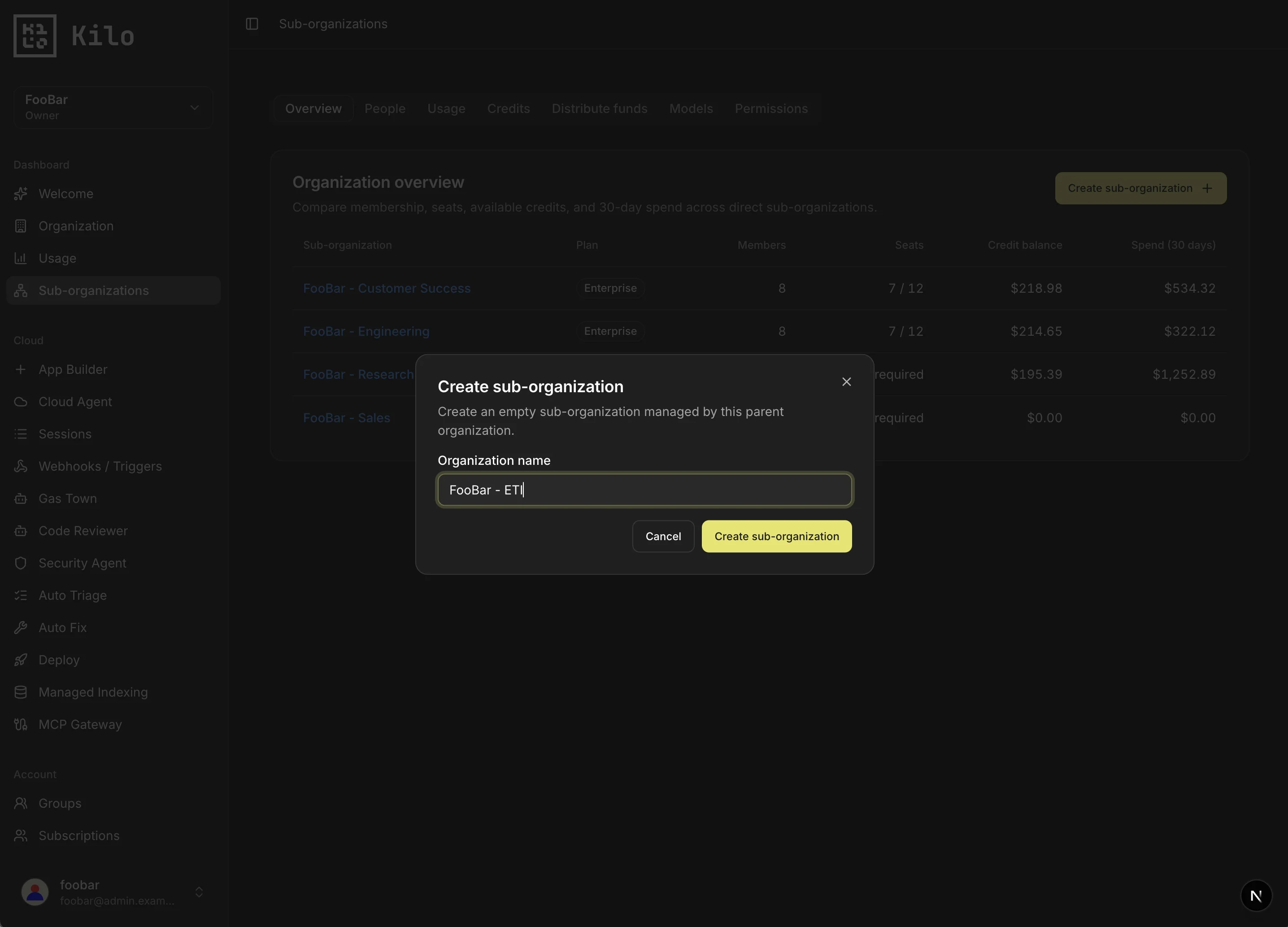
- Enter an organization name.
- Select Create sub-organization to confirm.
The new sub-organization starts empty. It does not automatically copy parent members, model policy, or organization settings. Parent Owners, Admins, and Billing Managers receive inherited management access without becoming members of the new sub-organization.
Billing Managers can view sub-organizations and manage financial operations, but they cannot create a sub-organization.
Use the management sections
The sub-organization area separates reporting and administrative tasks into focused sections.
| Section | What it shows |
|---|---|
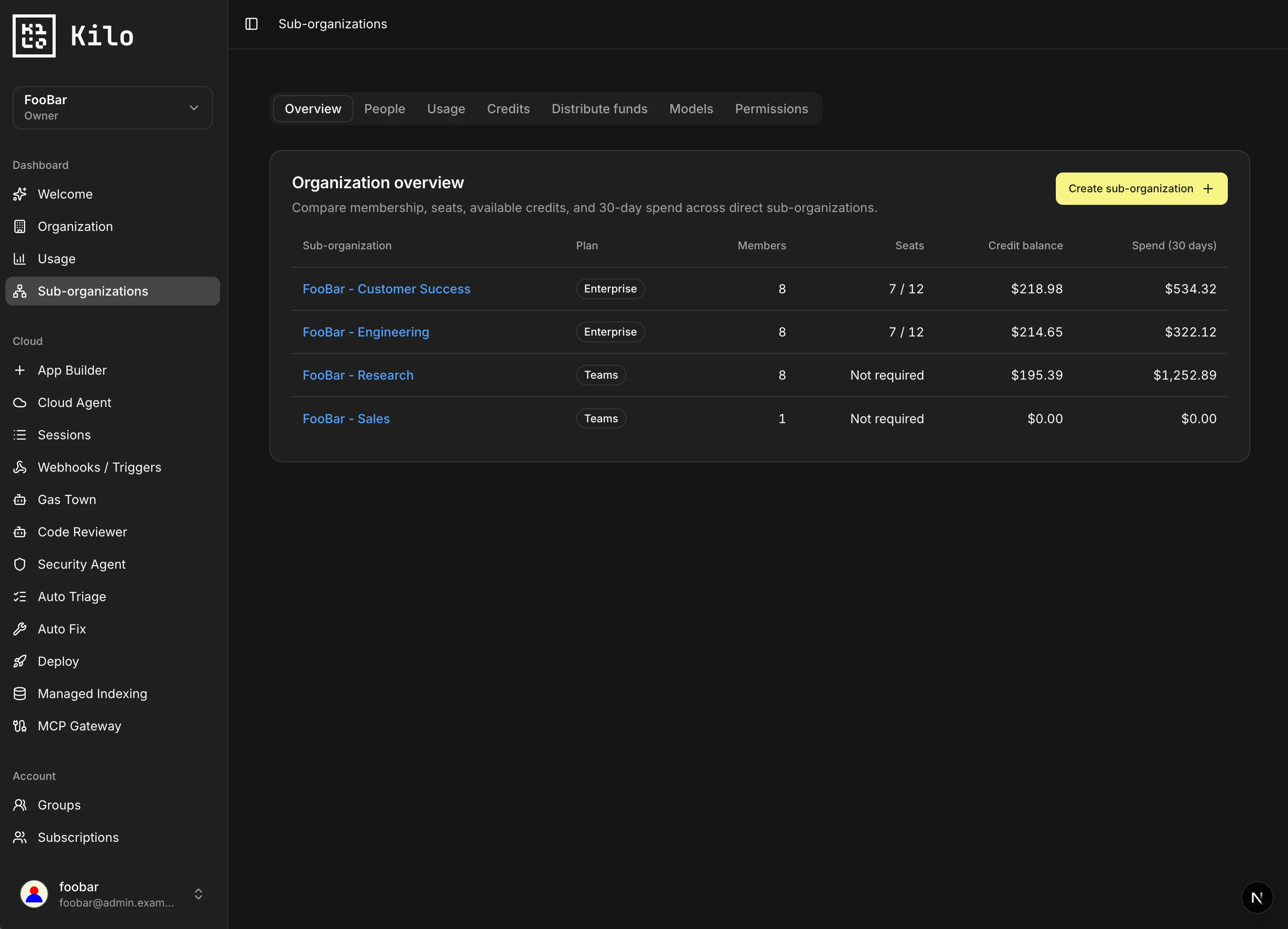
| Overview | Membership, seats, balances, and recent spend for each direct sub-organization. |
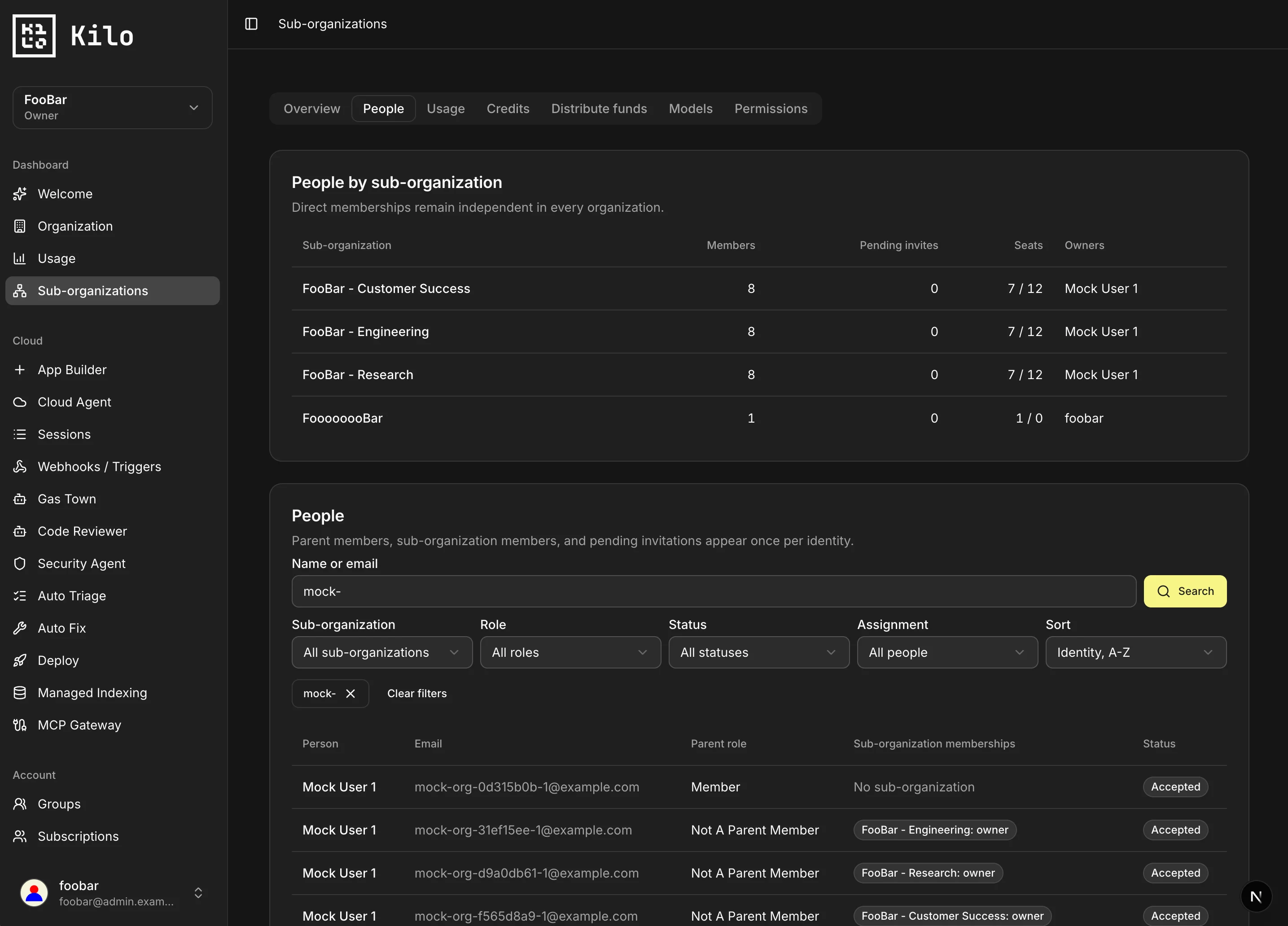
| People | One row per identity across the parent and its sub-organizations, including parent roles, accepted memberships, and pending invitations. |
| Usage | Requests, tokens, cost, and active users for a selected time range. |
| Credits | Credit balances, acquired and used credits, expirations, auto top-up status, Kilo Pass allocation, recent spend, and estimated runway. |
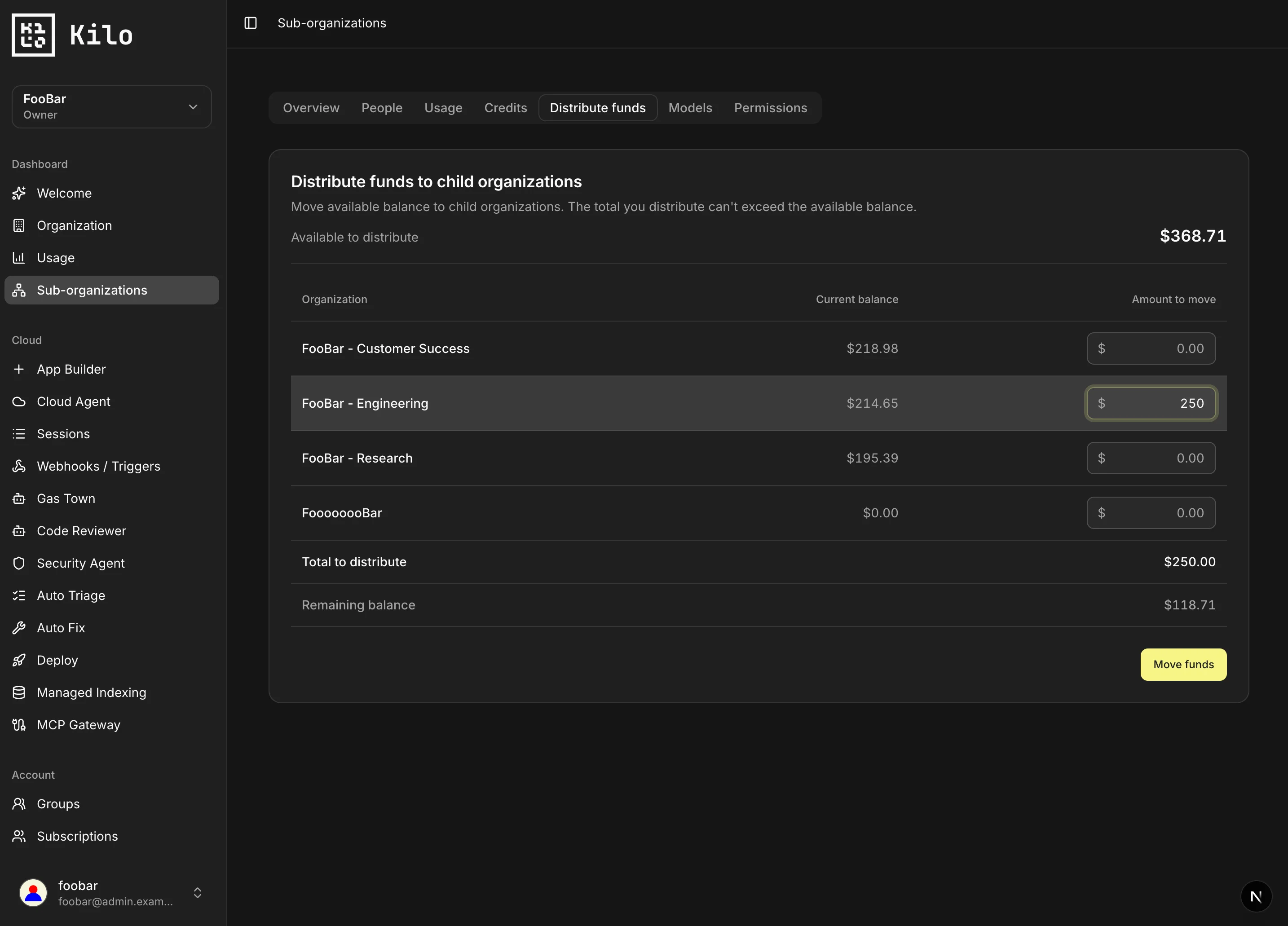
| Distribute funds | Transfer organization credits from the parent to one or more sub-organizations. |
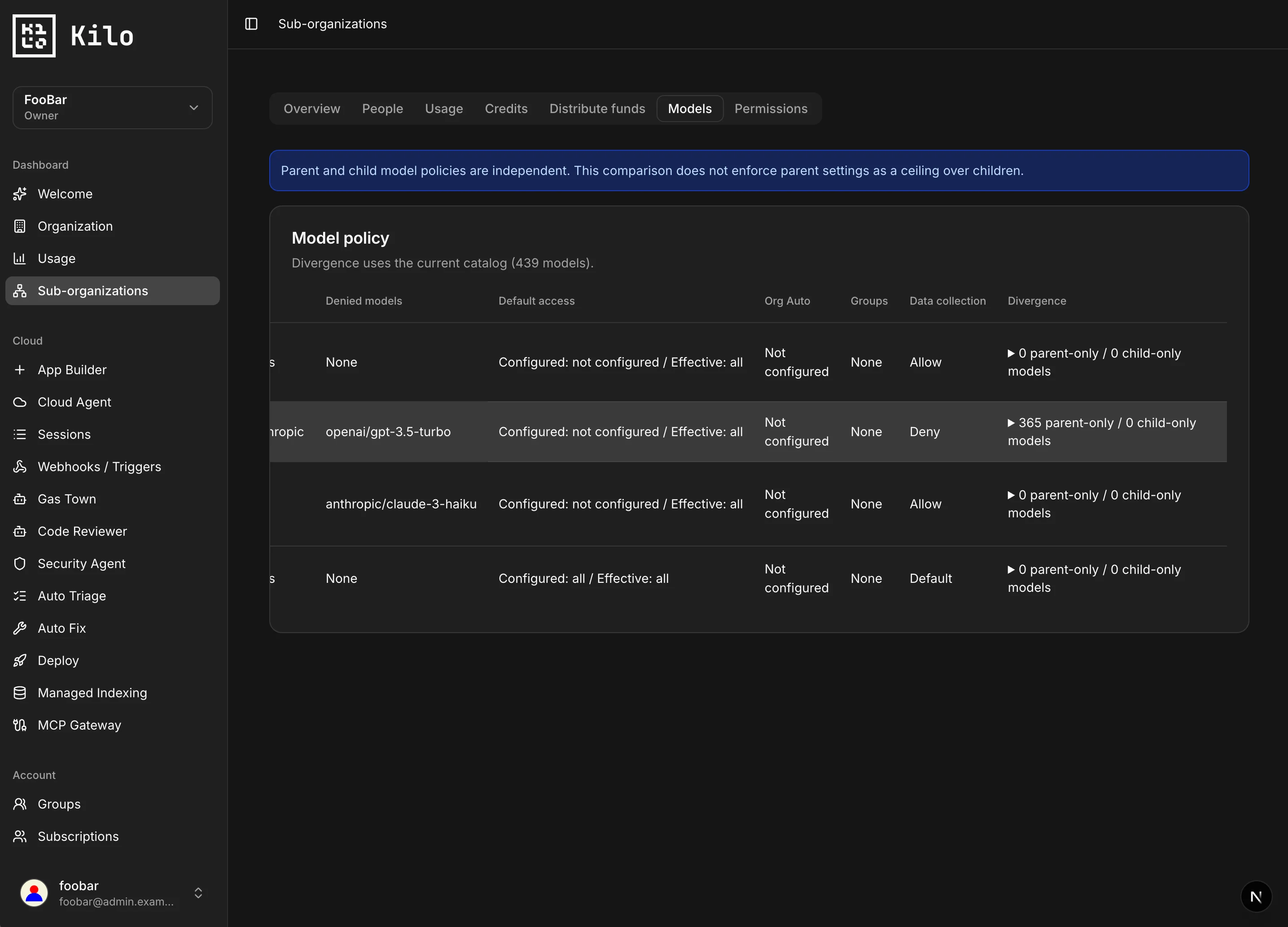
| Models | Compare configured model, provider, group, automatic routing, and data-collection policy across organizations. |
| Permissions | Review ownership, roles, SSO policy, feature settings, daily spend limits, and inherited parent access. |
Find people across the hierarchy
The People section combines each person into one record, even when that person belongs to multiple sub-organizations. Use it to:
- Search by name or email.
- Filter by sub-organization, role, membership status, or assignment status.
- Sort by identity, parent role, or number of sub-organization memberships.
- Distinguish accepted memberships from pending invitations.
- Find parent members who are not assigned to a sub-organization.
The People section reports current membership. To invite a new person, change a role, or remove a member, open the relevant organization's member settings.
Review usage and credits
Use Usage to compare activity across sub-organizations for the same period. Filter the results by model or provider and switch between cost, requests, tokens, and active users.
Use Credits to compare financial state across sub-organizations. Kilo Pass allocation represents pooled credit capacity for an organization, not passes assigned to individual people. If a future allocation differs from the current allocation, the table shows the transition separately.
Use Distribute funds when you need to transfer credit balance. Kilo Pass capacity and credit balance are separate quantities and are managed separately.
Compare models and permissions
The Models section compares the parent and each sub-organization. Parent and sub-organization policies are independent: changing the parent policy does not change or constrain a sub-organization policy.
The section distinguishes configured restrictions from restrictions that are actively enforced by the organization's plan. Open an organization's own settings when you need to change its model policy.
Use Permissions to identify sub-organizations without an independent Owner, review effective SSO policy, and see which parent users have inherited access. Inherited access does not create a membership or consume a seat in the sub-organization.
Recommended setup
- Give every sub-organization at least one direct Owner. Inherited parent access does not replace independent ownership.
- Use names that identify a team, business unit, or cost center consistently.
- Review usage and credit runway regularly before distributing additional funds.
- Configure model and SSO policy for each organization intentionally; parent settings do not cascade automatically.
- Use the parent organization for shared oversight, not as a substitute for direct sub-organization membership.