Managing Your Team
Team roles are Owner, Admin, Member, and Billing Manager.
Owners have full administrative oversight including billing, seat allocation, and model/provider selection.
Owners and Admins can manage the team. Only Owners can grant the Owner role or manage another Owner's membership.
Members can use the Kilo Code extension and see data on the team's usage in the usage dashboard.
Adding Team Members
- Navigate to Organization Tab in your profile page and click on the team you want to manage
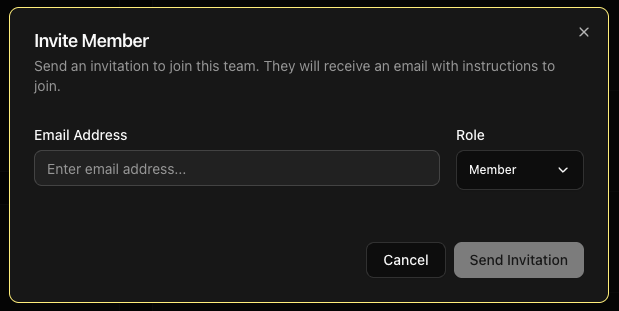
- Click "Invite Member" button
- Enter the team member's email address
- Select an initial role from the available options
- Click Send Invitation
Joining automatically with a verified domain
An organization Owner or Admin can verify an email domain so users with matching addresses join automatically:
- Open the Verified Domains card in your Organization dashboard.
- Add your company's email domain and follow the WorkOS verification steps to prove ownership.
- Return to Verified Domains and click Check status. If verification is still pending, check again until the domain shows Verified.
After verification, matching users join as Members when they sign in through the browser, SSO, or the mobile app. They keep their personal account and other organization memberships. Removed members are not automatically re-added, and elevated roles still require an explicit role change.
Auto-join does not require SSO. See SSO setup to configure single sign-on separately.
Removing Team Members
When team members leave:
- Navigate to Organization tab
- Find the departing member
- Click "Remove" button
- Confirm removal
- Seat becomes available immediately
Changing Team Member Roles
Promote or demote team members as needed:
- Locate team member in Organization tab
- Click role dropdown next to their name
- Select a new role from the available options
- Confirm change
- Member receives email notification
Viewing Team Status
The Organization tab shows:
- Active members with last activity
- Pending invitations awaiting acceptance
- Role distribution across the team
Next Steps
Effective team management ensures your organization maximizes the benefits of AI-assisted development while maintaining cost control and security.