Kilo Code Integrations
Kilo Integrations lets you connect GitHub or GitLab for repository workflows and DoltHub for Dolt-versioned data. Once connected, Kilo can access authorized resources securely, enabling features like Code Reviews, Cloud Agents, Kilo Deploy, and data workflows through Kilo Connect.
Supported Platforms
| Platform | Integration Type | Details |
|---|---|---|
| GitHub | GitHub App | GitHub Setup |
| GitLab | OAuth or PAT | GitLab Setup |
| DoltHub | OAuth | DoltHub Setup |
What You Can Do With Integrations
- Connect GitHub, GitLab, or DoltHub to Kilo Code in a few clicks
- Enable advanced features like Cloud Agents, Code Reviews, and Kilo Deploy
- Authorize GitHub or GitLab repository access so Kilo can analyze and work with your code
- Query Dolt-versioned data and authorize DoltHub access for Gas Town Wasteland
Prerequisites
Before connecting:
- You must have a GitHub or GitLab account.
- For GitHub: You need permission to install GitHub Apps for the repositories you want Kilo to access.
- For GitLab: You need Maintainer role (or higher) on the projects you want to connect.
- For DoltHub: You need a DoltHub account to authorize the OAuth connection.
- For a Kilo organization, adding a GitHub integration requires the Owner or Admin role, in addition to permission to install the app on GitHub.
Connecting GitHub
1. Open the Integrations Page
Go to your Personal or Organization Dashboard, and navigate to the Integrations tab.
2. Start the Connection Flow
- Click Configure on the GitHub panel.
- You'll be redirected to GitHub to authorize the KiloConnect App.
- Select the GitHub account or organization you want to connect.
3. Choose Repository Access
GitHub will ask which repositories you want Kilo to access:
- All repositories (recommended if you plan to use Cloud Agents or Deploy across multiple projects)
- Only selected repositories (choose specific repos)
Click Install & Authorize to continue.
4. Complete Authorization
Once approved:
- You'll return to the Kilo Integrations page.
- GitHub will show a Connected status.
- Your Kilo workspace can now access GitHub repositories securely.
Connecting GitLab
You can connect GitLab using OAuth or a Personal Access Token (PAT). Both GitLab.com and self-hosted GitLab instances are supported.
- Go to the Integrations page:
- Personal: app.kilo.ai/integrations/gitlab
- Organization: Your organization → Integrations → GitLab
- Click Connect GitLab
- Authorize the application on GitLab
- You'll be redirected back to Kilo with the connection active
Connecting DoltHub
Use the DoltHub integration page to connect your DoltHub account. Kilo uses this OAuth connection for Kilo Connect and as the default auth method for Gas Town Wasteland.
- Go to the Integrations page:
- Personal: app.kilo.ai/integrations/dolthub
- Organization: Your organization → Integrations → DoltHub
- Click Connect DoltHub.
- Approve Kilo on DoltHub.
- Return to Kilo and confirm DoltHub shows a Connected status.
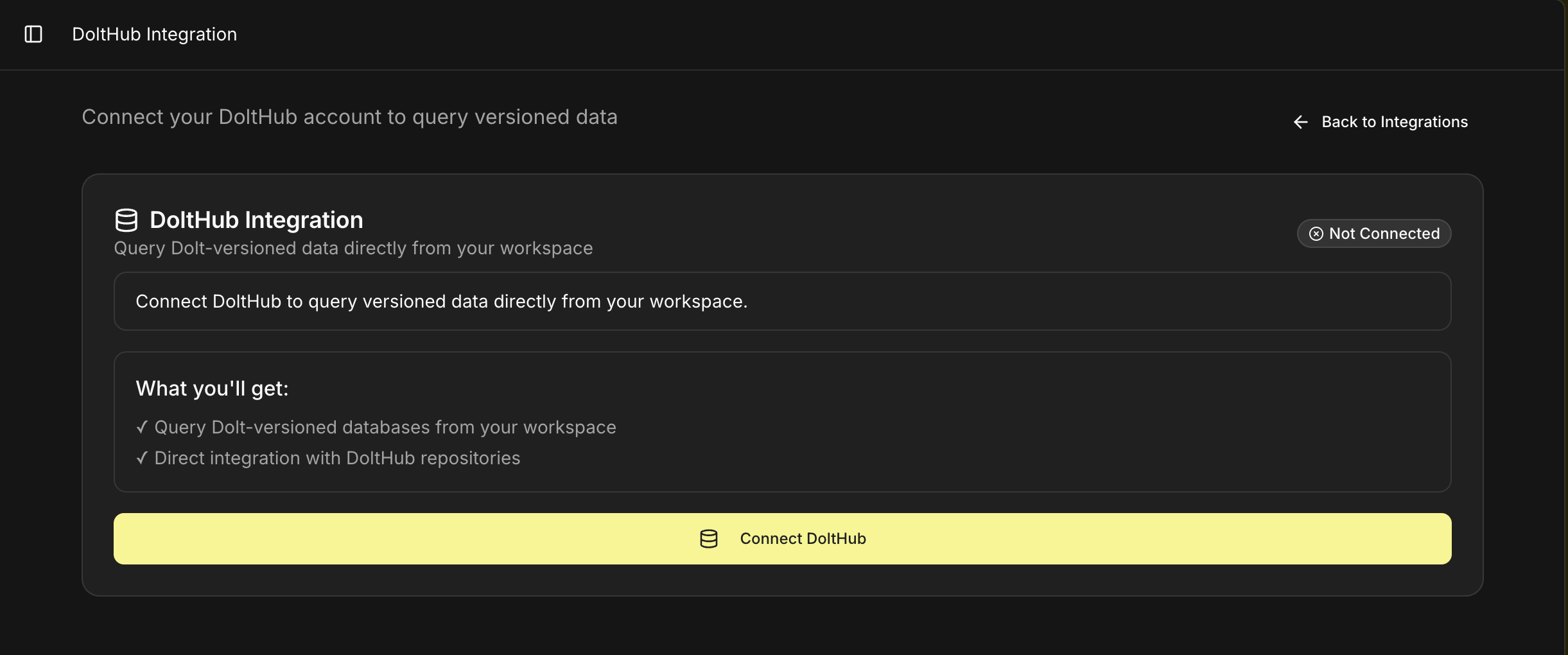
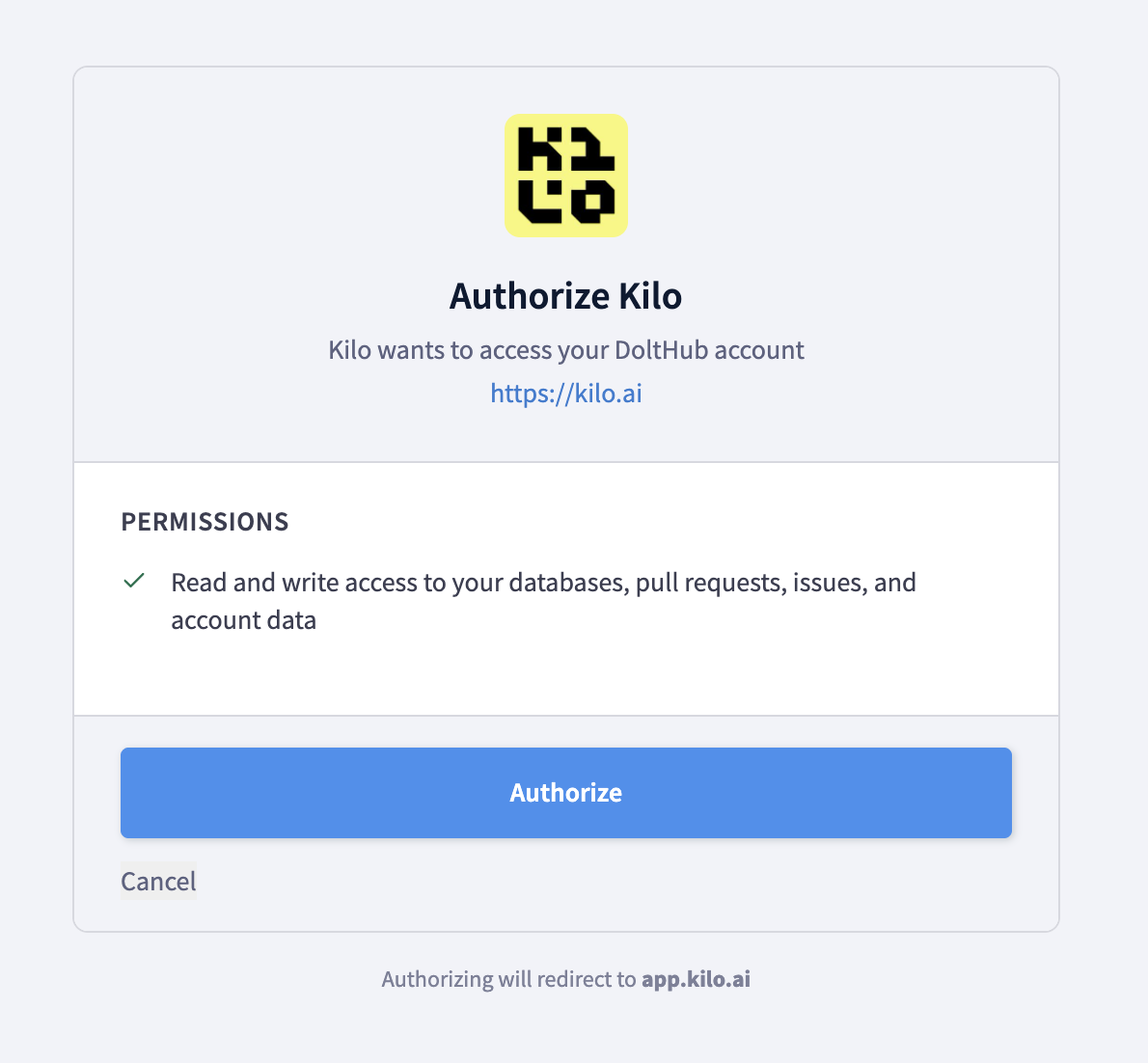
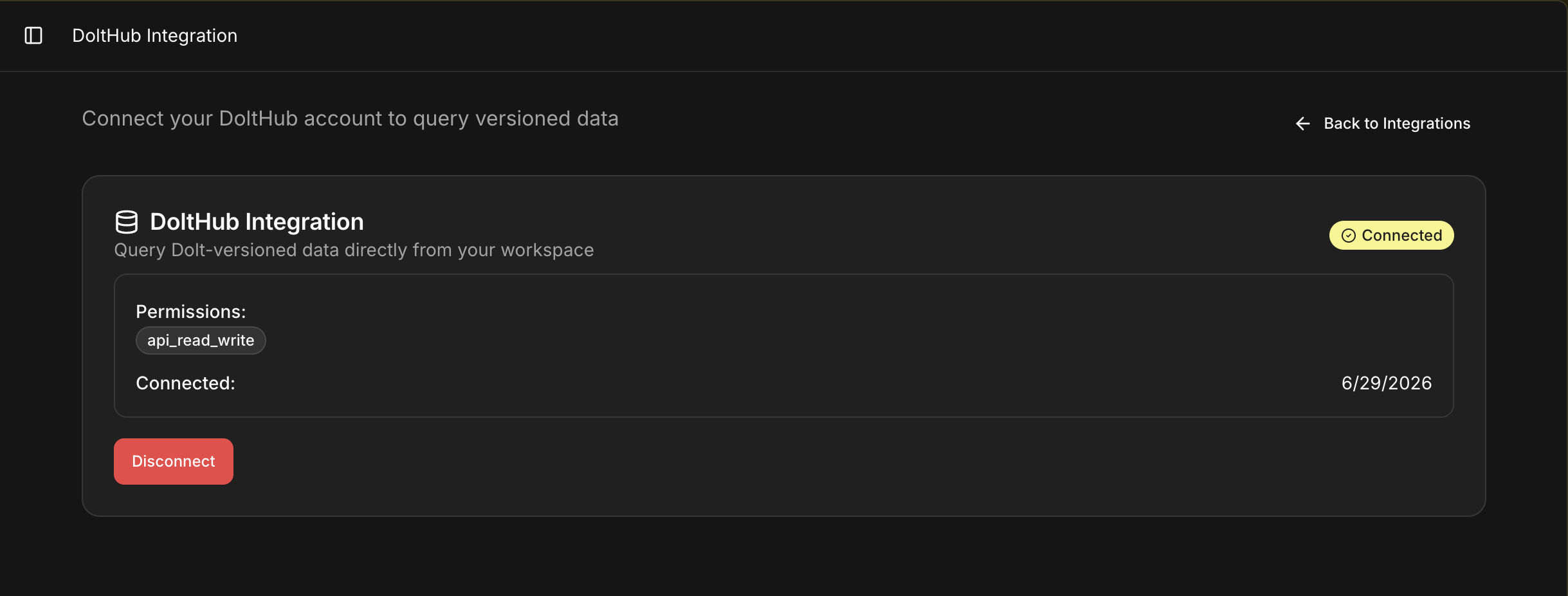
To remove the connection, click Disconnect from the DoltHub integration page.
What Happens After Connecting
Once your integrations are connected, the following features are enabled in Kilo:
Cloud Agents
- Run Kilo Code in the cloud from any device
- Auto-create branches and push work continuously
- Work from anywhere while keeping your repo in sync
Code Reviews
- Automated AI review on every pull request or merge request
- Consistent feedback based on your team's standards
- See the Code Reviews guide for setup
Kilo Deploy
- Deploy Next.js 14 & 15 apps directly from Kilo
- Trigger rebuilds automatically on push
- Manage deployment logs and history
DoltHub data access
- Query Dolt-versioned databases from your workspace
- Use DoltHub alongside GitHub or GitLab when a workflow also needs repository access
- Authorize Gas Town Wasteland to fork commons databases, push claims and evidence, and manage DoltHub PRs. Wasteland also supports an advanced API token option when OAuth is not available.
Bitbucket
Organization accounts can connect Bitbucket Cloud and select its repositories when starting Cloud Agent sessions on the web or in the mobile app. Connect Bitbucket from your organization's Integrations page. Bitbucket is not available for personal accounts.
Managing or Removing the Integration
GitHub
An organization Owner or Admin can connect multiple GitHub organizations. Click Add organization and repeat the installation flow. Each installation has its own connection status, repository scope, selected repository list, and management actions. Personal accounts use a single GitHub connection.
From the Integrations page, click "Manage on GitHub" to:
- View the GitHub account you connected
- Update which repositories Kilo has access to
- Disconnect GitHub entirely
- Reauthorize the app if permissions change
GitLab
From the Integrations page:
- Click Disconnect to remove the GitLab connection
- Your tokens are cleared, but webhook configuration is preserved so reconnecting restores your setup
Disconnecting from Kilo does not revoke OAuth tokens on GitLab's side. You can manually revoke them from GitLab → User Settings → Applications → Authorized Applications.
DoltHub
From the Integrations page, open DoltHub to:
- View the connected status
- View granted permissions
- Disconnect DoltHub from Kilo
Troubleshooting
GitHub
"I don't see my repositories." Ensure the KiloConnect App is installed for the correct GitHub org and that repo access includes the repositories you need.
"My organization blocks third-party apps." You may need an admin to approve installing GitHub Apps.
"Cloud Agents or Deploy can't access my repo." Revisit the GitHub app settings and confirm the app has the correct repo scope.
GitLab
"No projects listed after connecting." Click the refresh button to sync projects from GitLab. Ensure your GitLab account has access to the projects you expect.
"Permission denied" errors. You need Maintainer role on the GitLab project for webhook and bot token creation.
"Token expired."
- OAuth: Tokens refresh automatically. If refresh fails, reconnect from the integration page.
- PAT: Create a new token in GitLab and reconnect in Kilo.
"Self-hosted connection issues."
- Verify your instance URL is accessible from the internet
- Ensure HTTPS is configured
- Check that OAuth application scopes include all required scopes
- Verify the redirect URI matches:
https://app.kilo.ai/api/integrations/gitlab/callback