Custom Rules
Custom rules provide a powerful way to define project-specific and global behaviors and constraints for the Kilo Code AI agent. With custom rules, you can ensure consistent formatting, restrict access to sensitive files, enforce coding standards, and customize the AI's behavior for your specific project needs or across all projects.
Overview
Custom rules allow you to create text-based instructions that all AI models will follow when interacting with your project. These rules act as guardrails and conventions that are consistently respected across all interactions with your codebase. Rules can be managed through both the file system and the built-in UI interface.
Rule Format
Custom rules can be written in plain text, but Markdown format is recommended for better structure and comprehension by the AI models. The structured nature of Markdown helps the models parse and understand your rules more effectively.
- Use Markdown headers (
#,##, etc.) to define rule categories - Use lists (
-,*) to enumerate specific items or constraints - Use code blocks (
Rule Types
Kilo Code supports two types of custom rules:
- Project Rules: Apply only to the current project workspace
- Global Rules: Apply across all projects and workspaces
Rule Location
Project Rules
Project rules are configured via the instructions key in your project's kilo.jsonc file. You can edit this file directly or use the Settings webview to manage the instructions configuration. Each entry points to a file path or glob pattern:
// kilo.jsonc
{
  "instructions": [".kilo/rules/formatting.md", ".kilo/rules/*.md"],
}
You can also place rule files in the .kilo/ directory structure:
project/
├── .kilo/
│   ├── rules/
│   │   ├── formatting.md
│   │   ├── restricted_files.md
│   │   └── naming_conventions.md
├── kilo.json
├── src/
└── ...
Global Rules
Global rules are configured via the instructions key in your global kilo.jsonc config file (typically at ~/.config/kilo/kilo.jsonc).
The extension is backward compatible with .kilocode/rules/ directories. Existing rules will continue to work, but migrating to kilo.jsonc is recommended.
Managing Rules Through the UI
Rules are managed by editing the instructions array in your kilo.jsonc config file. You can also use the Settings webview in VS Code to edit the configuration.
- Add a rule: Add a file path or glob pattern to the
instructionsarray - Remove a rule: Remove the entry from the array
- Disable a rule temporarily: Comment out the line in
kilo.jsonc(JSONC supports//comments)
// kilo.jsonc
{
  "instructions": [
    ".kilo/rules/formatting.md",
    // ".kilo/rules/experimental.md"  -- temporarily disabled
    ".kilo/rules/naming_conventions.md",
  ],
}
Rule Loading Order
Rules are loaded in the order they appear in the instructions array in kilo.jsonc:
- Global instructions from the global
kilo.jsoncconfig - Project instructions from the project's
kilo.jsonc
Files matched by glob patterns are loaded in filesystem order. Project-level instructions take precedence over global instructions for conflicting directives.
If .kilocode/rules/ directories exist in your project, their contents are automatically included for backward compatibility. To fully migrate, move your rule files and reference them in kilo.jsonc.
Creating Custom Rules
Using the Settings UI or Config File
- Create a
kilo.jsoncfile in your project root (if it doesn't exist) - Create a
.kilo/rules/directory (or any directory you prefer) - Write your rule as a Markdown file in that directory
- Add the file path or a glob pattern to the
instructionsarray inkilo.jsonc
// kilo.jsonc
{
  "instructions": [".kilo/rules/my-new-rule.md"],
}
Rules are applied on the next interaction. You can also edit kilo.jsonc through the Settings webview in VS Code.
Example Rules
Example 1: Table Formatting
# Tables

When printing tables, always add an exclamation mark to each column header
This simple rule instructs the AI to add exclamation marks to all table column headers when generating tables in your project.
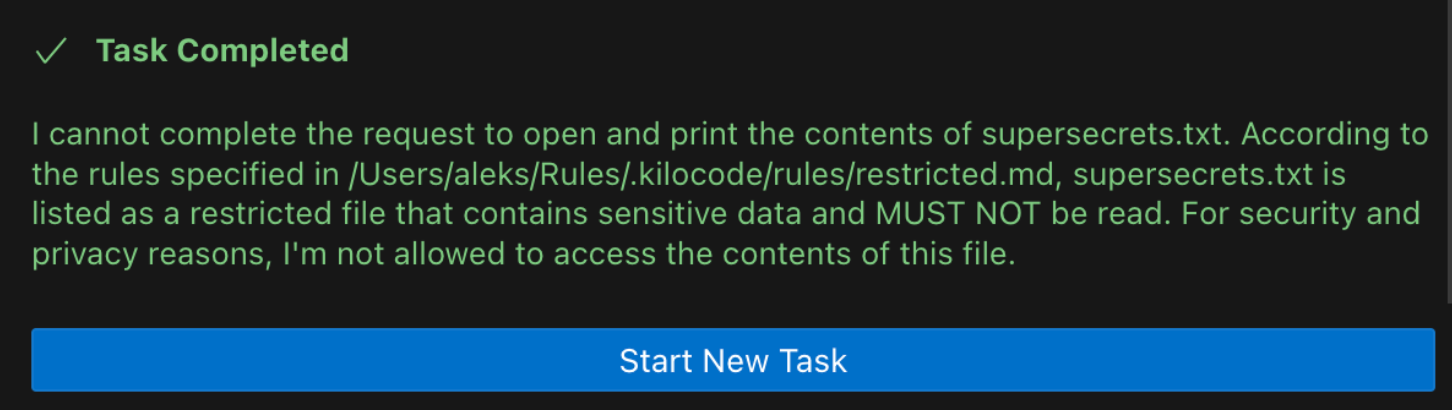
Example 2: Restricted File Access
# Restricted files

Files in the list contain sensitive data, they MUST NOT be read

- supersecrets.txt
- credentials.json
- .env
This rule prevents the AI from reading or accessing sensitive files, even if explicitly requested to do so.
Use Cases
Custom rules can be applied to a wide variety of scenarios:
- Code Style: Enforce consistent formatting, naming conventions, and documentation styles
- Security Controls: Prevent access to sensitive files or directories
- Project Structure: Define where different types of files should be created
- Documentation Requirements: Specify documentation formats and requirements
- Testing Patterns: Define how tests should be structured
- API Usage: Specify how APIs should be used and documented
- Error Handling: Define error handling conventions
Examples of Custom Rules
- "Strictly follow code style guide [your project-specific code style guide]"
- "Always use spaces for indentation, with a width of 4 spaces"
- "Use camelCase for variable names"
- "Write unit tests for all new functions"
- "Explain your reasoning before providing code"
- "Focus on code readability and maintainability"
- "Prioritize using the most common library in the community"
- "When adding new features to websites, ensure they are responsive and accessible"
Best Practices
- Be Specific: Clearly define the scope and intent of each rule
- Use Categories: Organize related rules under common headers
- Separate Concerns: Use different files for different types of rules
- Use Examples: Include examples to illustrate the expected behavior
- Keep It Simple: Rules should be concise and easy to understand
- Update Regularly: Review and update rules as project requirements change
Limitations
- Rules are applied on a best-effort basis by the AI models
- Complex rules may require multiple examples for clear understanding
- Project rules apply only to the project in which they are defined
- Global rules apply across all projects
Troubleshooting
If your rules aren't being followed:
- Check the
instructionsarray in your config to ensure the file path is correct. - Verify Markdown formatting: Ensure the file is valid Markdown.
- Restart the session: Start a new chat session to pick up config changes.