Tips & Tricks
A collection of quick tips to help you get the most out of Kilo Code.
-
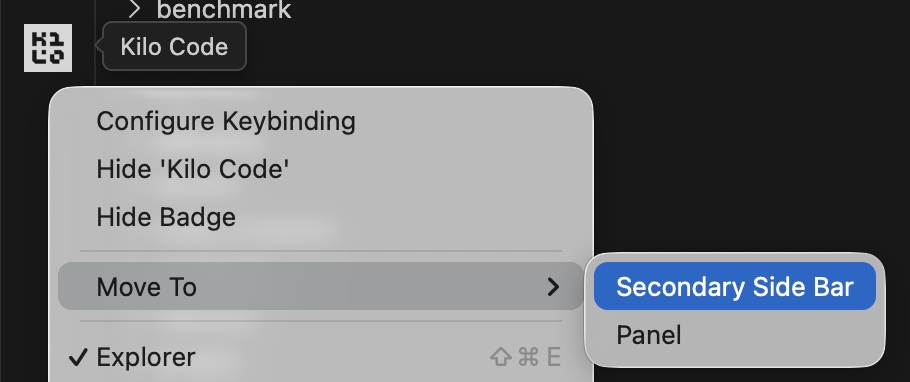
Right-click on the Kilo Code icon in the Activity Bar and select Move To → Secondary Side Bar to move Kilo Code to the Secondary Sidebar, so you can see the Explorer, Search, Source Control, etc. alongside Kilo Code.
-
Once you have Kilo Code in a separate sidebar from the file explorer, you can drag files from the explorer into the chat window (and even multiple at once). Just make sure to hold down the shift key after you start dragging the files.
-
Autocomplete Tips:
- Use chat for multi-file changes, refactoring, or when you need to explain intent. Use autocomplete for quick, localized edits where the context is already clear from surrounding code.
- Steer autocomplete by writing a comment describing what you want before triggering it, or by typing a function signature—autocomplete will fill in the implementation.
- Treat autocomplete suggestions as drafts: accept them quickly, then refine. It's often faster to fix a 90% correct suggestion than to craft the perfect prompt.
-
If you're not using MCP, turn it off in Settings > Agent Behaviour > MCP Servers to significantly cut down the size of the system prompt.
-
To keep your custom modes on track, limit the types of files that they're allowed to edit.
-
If you hit the dreaded
input length and max tokens exceed context limiterror, you can recover by deleting a message, rolling back to a previous checkpoint, or switching over to a model with a long context window like Gemini for a message. -
In general, be thoughtful about your
Max Tokenssetting for thinking models. Every token you allocate to that takes away from space available to store conversation history. Consider only using highMax Tokens/Max Thinking Tokenssettings with modes like Architect and Debug, and keeping Code mode at 16k max tokens or less. -
If there's a real world job posting for something you want a custom mode to do, try asking Code mode to
Create a custom mode based on the job posting at @[url] -
If you want to really accelerate, check out multiple copies of your repository and run Kilo Code on all of them in parallel (using git to resolve any conflicts, same as with human devs).
-
When using Debug mode, ask Kilo to "start a new task in Debug mode with all of the necessary context needed to figure out X" so that the debugging process uses its own context window and doesn't pollute the main task
-
Add your own tips by clicking "Edit this page" below!
-
To manage large files and reduce context/resource usage, adjust the
File read auto-truncate thresholdsetting. This setting controls the number of lines read from a file in one batch. Lower values can improve performance when working with very large files, but may require more read operations. You can find this setting in the Kilo Code settings under 'Advanced Settings'.
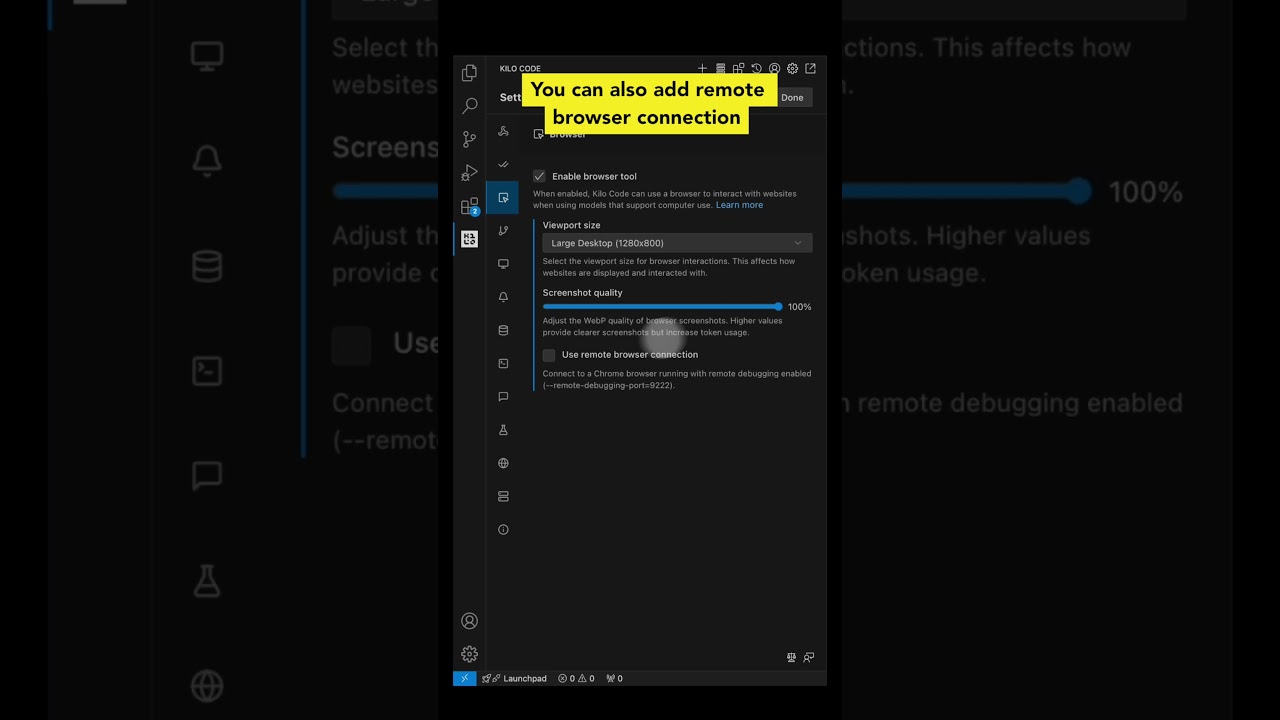
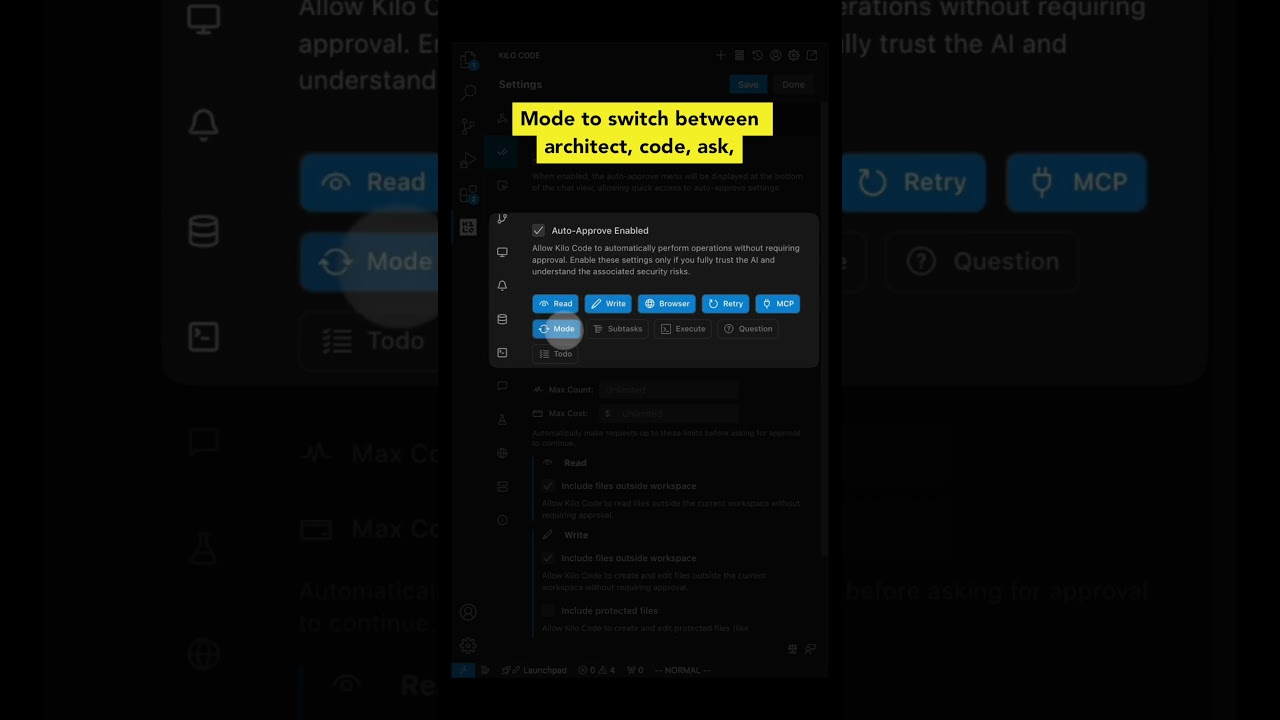
| Browser Tab | Auto-Approve Tab | Display Tab |
|---|---|---|
 |  |  |