Using Nebius Token Factory With Kilo Code
Nebius Token Factory provides inference for a wide range of models on Nebius infrastructure. You can connect it to Kilo Code three ways:
- Locally — add your own API key in the VS Code extension, JetBrains plugin, or CLI.
- In Kilo Cloud — store the key as a BYOK key so Cloud Agents and your team can use it.
- Org-wide via Kilo Gateway — let organization owners control which Nebius models and regions your team can use.
Website: https://nebius.com/
Prerequisites
- A Nebius Token Factory API key
- Kilo Code installed: the VS Code extension, JetBrains plugin, or CLI
Getting an API Key
- Sign Up/Sign In: Go to Nebius Token Factory and create an account or sign in.
- Create a Key: Open the API Keys section and create a new API key.
- Copy the Key: Copy the key and store it securely.
Add Your Key Locally
- Open Settings (gear icon) and go to the Providers tab.
- Click Show more providers and select Nebius Token Factory.
- Paste your API key and save.
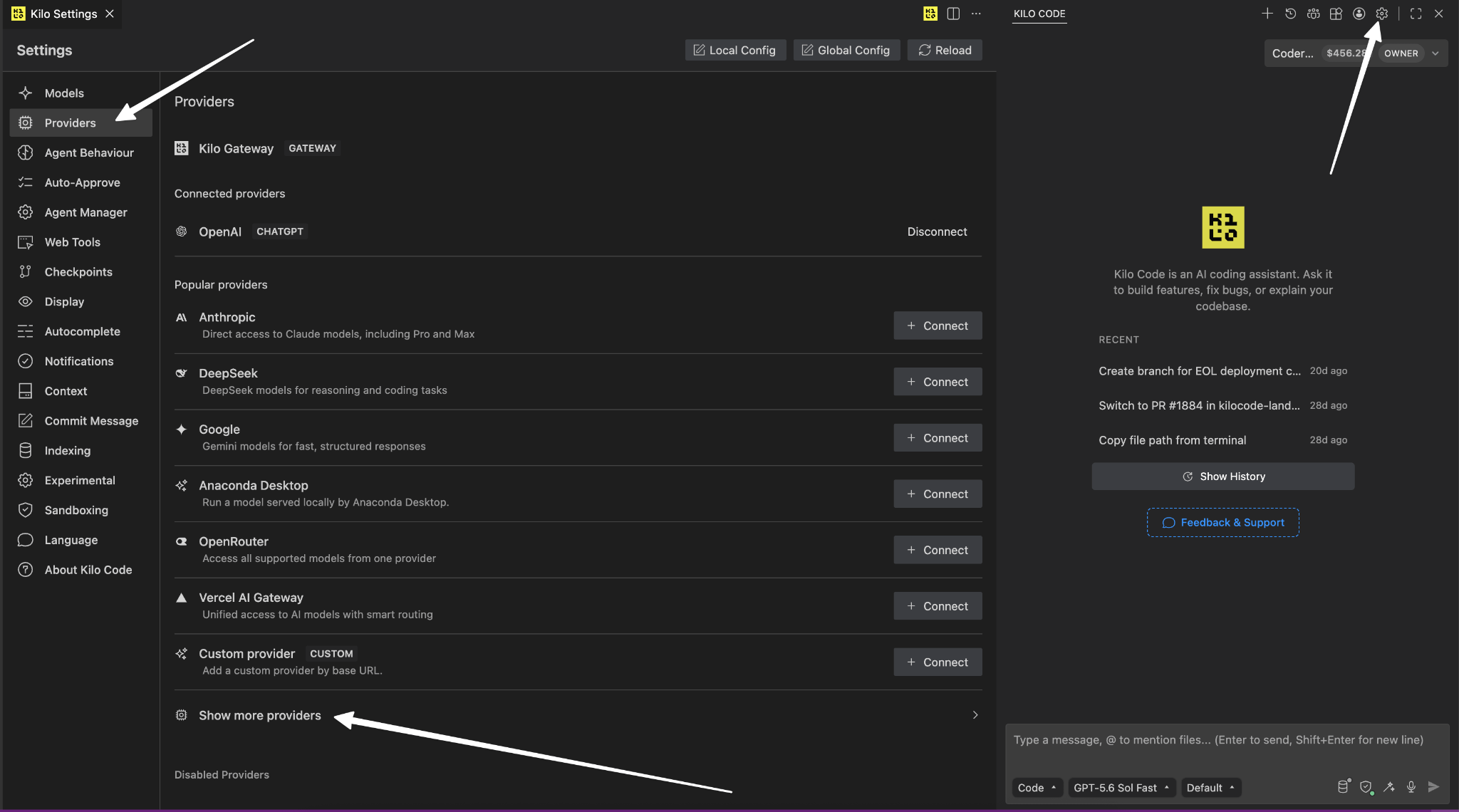
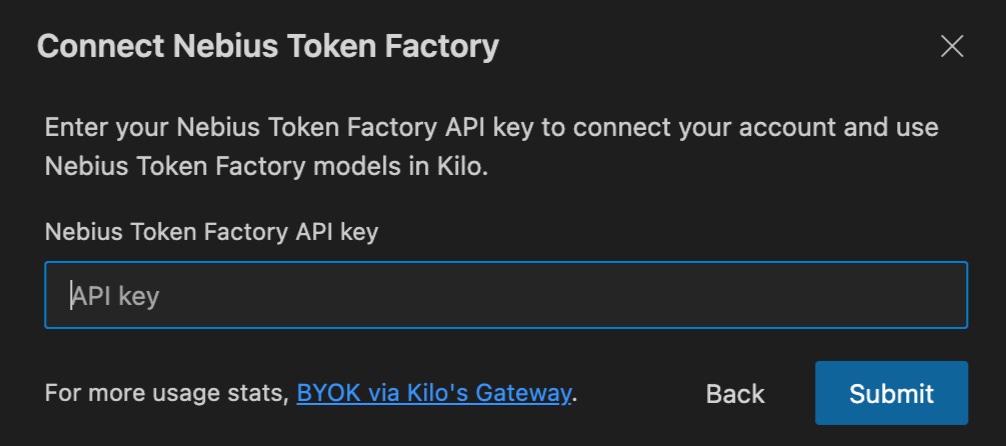
The extension stores this in your kilo.json config file. You can also edit the config file directly — see the CLI tab for the file format.
Select a Nebius Model
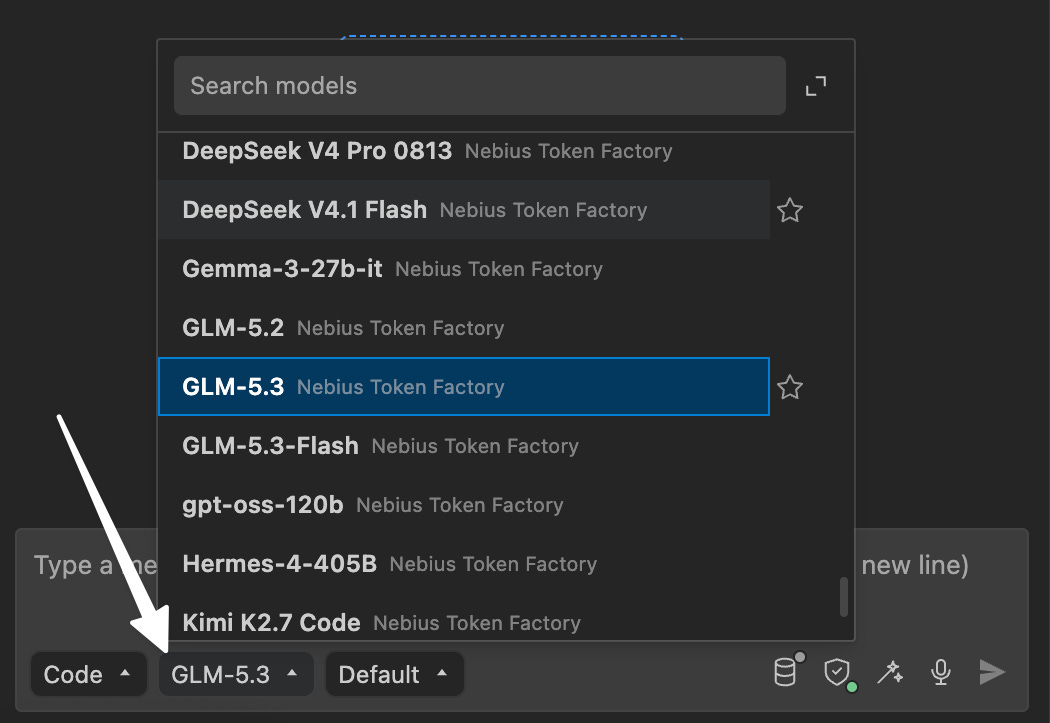
Once your key is configured, open the model picker and select any model tagged Nebius Token Factory. Model IDs use the nebius/<vendor>/<model> format (for example, nebius/zai-org/GLM-5.3). See the Nebius Token Factory docs for the full model list.
Share Your Key With Your Team (Kilo Cloud BYOK)
Storing your key as a BYOK (Bring Your Own Key) key in Kilo Cloud makes it available to Cloud Agents and, at the organization level, to every member of your team through a shared usage pool. Requests are billed directly by Nebius at your account's rates — Kilo adds no markup.
- Log into the Kilo platform and select your personal account or the organization you want to add the key to.
- Navigate to the Bring Your Own Key (BYOK) page, available in the sidebar under Account.
- Click Add API Key, select Nebius Token Factory as the provider, and paste your key.
- Save.
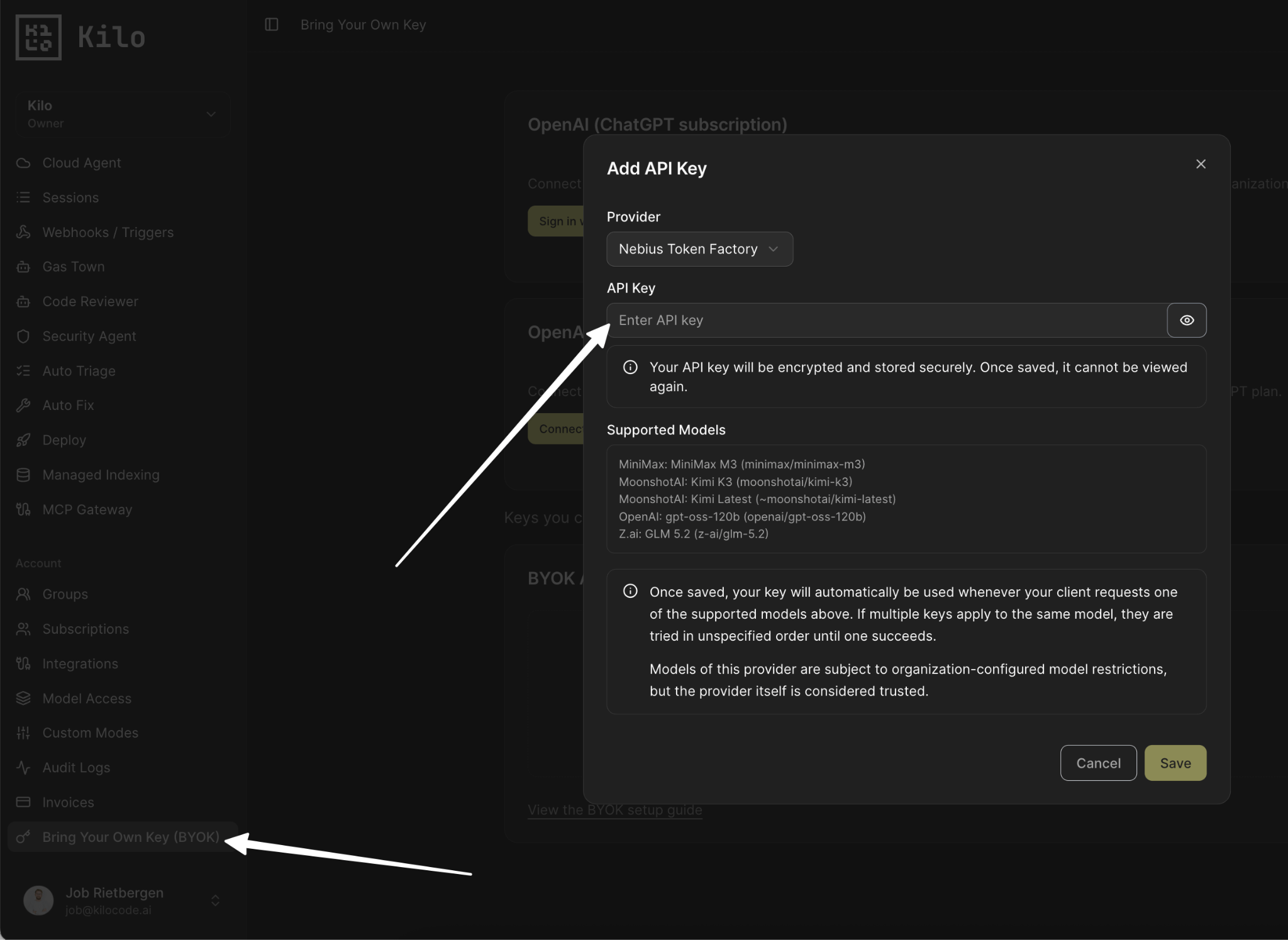
Organization-level keys apply to all members of the organization and require owner or billing manager access to manage. For details on how BYOK routing works, see Bring Your Own Key (BYOK).
Control Nebius Access Org-Wide (Kilo Gateway)
Model access controls are an Enterprise-only feature. Organizations on other plans have unrestricted access to all models and providers.
The Kilo Gateway provides access to 500+ models from 60+ providers, including Nebius Token Factory. As an organization owner, you can control which models and provider routes your team can use:
- Navigate to your organization's Providers & Models page.
- Toggle Nebius Token Factory on the Providers tab to control access to all of its models at once.
- Toggle individual models on the Models tab. Use the data policy (trains on data, retains prompts) and location filters to review providers.
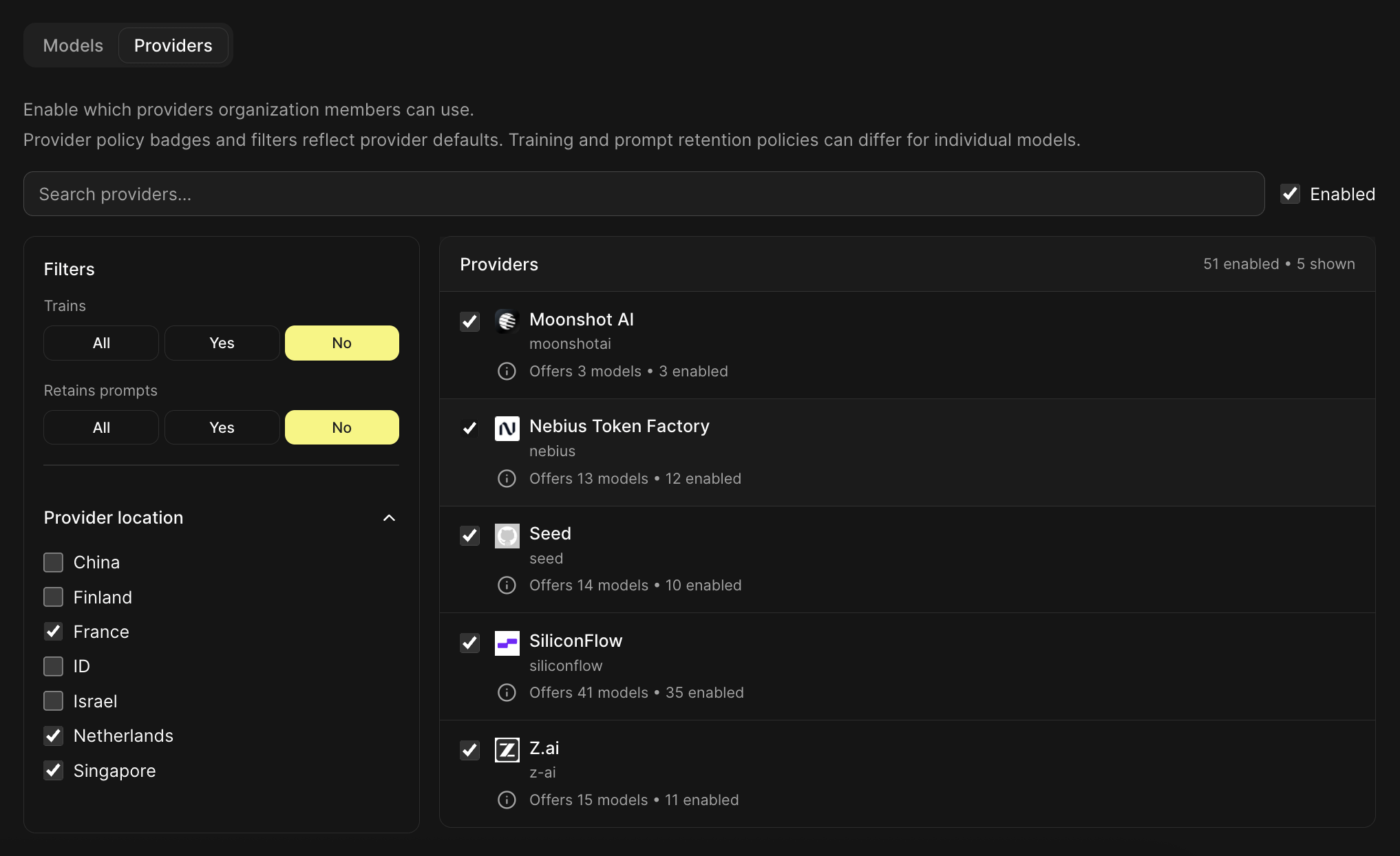
Team members can then select the allowed Nebius models through the Kilo Gateway. For details, see Model Access Controls.
Tips and Notes
- Model Selection: Nebius Token Factory offers a wide range of models. Experiment to find the best one for your needs.
- Pricing: You pay Nebius directly based on your usage. See the Nebius Token Factory pricing page for current rates.
- BYOK badge: When you use the Kilo Gateway provider, models that can use one of your saved personal or organization BYOK keys display a
BYOKbadge in the model picker.