Credits and Billing
This section contains questions about credits, billing, and pricing in Kilo Code.
Credits
Why am I seeing requests for "Codestral 2508"?
Kilo Code uses Codestral 2508 (a model by Mistral AI) as the dedicated engine for our Autocomplete feature. It is optimized for speed and low latency, making it perfect for real-time code suggestions.
Why is it running in the background?
Because Autocomplete needs to be ready the moment you start typing, the model stays active in the background whenever the feature is enabled. This occurs even if you aren't currently using the Kilo Chat.
How much does it cost?
To use your Mistral account for Codestral autocomplete instead of Kilo credits, add a standard Mistral Studio API key under Mistral AI via BYOK. Your Mistral plan, usage limits, and pay-as-you-go settings determine whether requests incur charges. BYOK does not guarantee free autocomplete.
Setup Guide: Setting up Mistral for autocomplete
How to Disable These Requests
If you prefer not to have background requests running, you can turn off the feature entirely:
- Open your Kilo Settings.
- Navigate to the Autocomplete tab.
- Toggle the feature to Off.
Disabling this will stop all ghost-text suggestions in your editor.
Why do I have credits, but Kilo shows a low balance or warning?
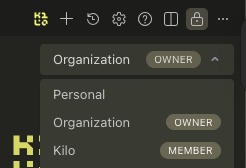
Kilo credits are not shared between Personal and Organization environments.
If you have credits in one environment but are currently using the other, Kilo may show a low balance or usage warning.
How to fix it
In the IDE
Use the environment selector dropdown to switch to the account that holds your credits (Personal or the specific Organization).
In the CLI
Run:
/teams
Then choose the environment you want to use.
Why this happens
Each environment maintains its own balance and usage tracking to ensure clear billing and access control. Switching environments ensures Kilo is using the correct credit pool.
Billing
How do I add a VAT number to my invoices?
You can add your VAT number during the credit purchase process.
In the credit purchase window, enable the option “I’m purchasing as a business.” Once enabled, a field will appear to enter your VAT number.