KiloClaw Dashboard
This page covers everything you can do from the KiloClaw dashboard. For getting started, see KiloClaw Overview.
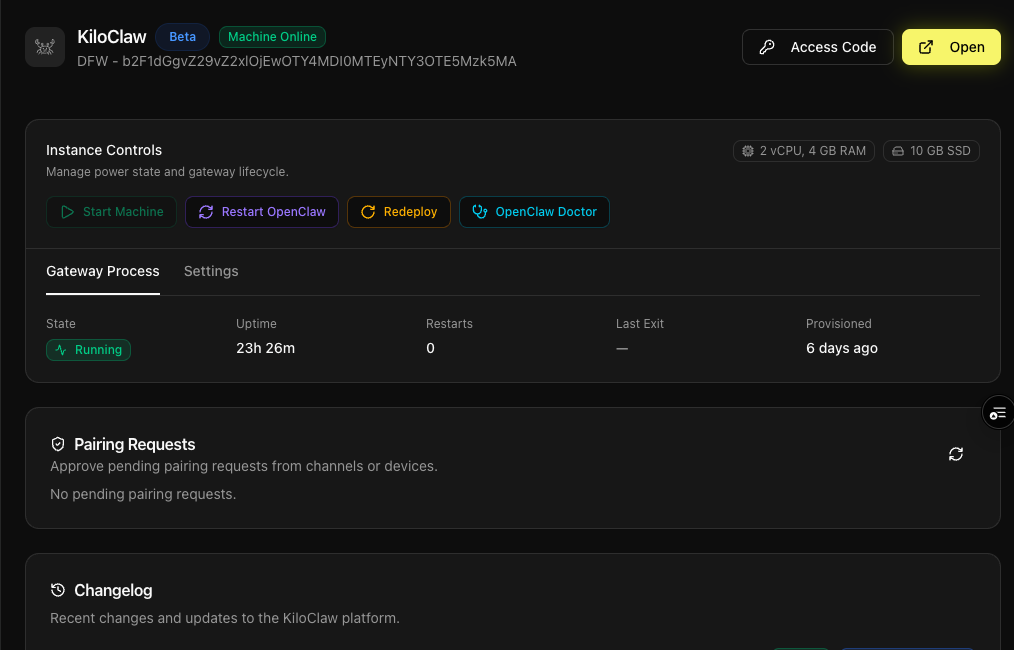
Instance Status
Your instance is always in one of these states as indicated by the status label at the top of your dashboard:
| Status | Label | Meaning |
|---|---|---|
| Running | Machine Online | Your agent is online and reachable |
| Stopped | Machine Stopped | The machine is off, but all your files and data are preserved |
| Provisioned | Provisioned | Your instance has been created but never started |
| Destroying | Destroying | The instance is being permanently deleted |
Instance Controls
There are four actions you can take on your instance. Which ones are available depends on the current status.
▶️ Start Machine
Boots your instance. If this is the first time starting after provisioning, the machine is created; otherwise, the existing machine resumes. Can take up to 60 seconds.
Available when the instance is stopped or provisioned.
🔄 Restart OpenClaw
Restarts just the OpenClaw process without rebooting the machine. This is a quick way to recover from a process-level issue — active sessions will briefly disconnect and reconnect automatically.
Available when the instance is running.
↩️ Redeploy
Stops the machine, applies the latest platform image and your current configuration (environment variables, secrets, channel tokens), and starts it again.
Your files, git repos, cron jobs, and everything on your persistent volume are preserved. Redeploy is not a factory reset — think of it as "update and restart."
You should redeploy when:
- The changelog shows "Redeploy Required" or "Redeploy Suggested"
- You've changed channel tokens or secrets in Settings
- You want to pick up the latest platform updates
Available when the instance is running.
🩺 OpenClaw Doctor
Runs diagnostics and automatically fixes common configuration issues. This is the recommended first step when something isn't working. Output is shown in real time.
Available when the instance is running.
Gateway Process
The Gateway Process tab shows the health of the OpenClaw process running inside your machine:
- State — Whether the process is Running, Stopped, Starting, Stopping, Crashed, or Shutting Down
- Uptime — How long it's been running since the last start
- Restarts — How many times the process has been automatically restarted
- Last Exit — The exit code and timestamp from the last time the process stopped or crashed
If the gateway crashes, it's automatically restarted. The machine itself can be running even when the gateway process is down — they're independent.
Gateway process info is only available when the machine is running.
Settings
Changing the Model
Select a model from the dropdown and click Save & Provision. The API key is platform-managed and refreshes automatically when you save — you never need to enter one. The key has a 30-day expiry.
Channels
You can connect Telegram, Discord, and Slack by entering bot tokens in the Settings tab. See Connecting Chat Platforms for setup instructions.
After saving channel tokens, you need to Redeploy or Restart OpenClaw for the changes to take effect.
Stop and Destroy
At the bottom of Settings:
- Stop Instance — Shuts down the machine. All your data is preserved and you can start it again later.
- Destroy Instance — Permanently deletes your instance and all its data, including files, configuration, and workspace. This cannot be undone.
Accessing the Control UI
When your instance is running you can access the OpenClaw Control UI — a browser-based dashboard for managing your agent, channels, sessions, exec approvals, and more:
- Click Access Code to generate a one-time code (expires in 10 minutes)
- Click Open to launch the OpenClaw web interface in a new tab
- Enter the access code to authenticate
See the Control UI reference for a full overview of its capabilities.
Do not use the Update feature in the OpenClaw Control UI to update KiloClaw. Use Redeploy from the KiloClaw Dashboard instead. Updating via the Control UI will not apply the correct KiloClaw platform image and may break your instance.
Pairing Requests
When your instance is running, the dashboard shows any pending pairing requests. These appear when:
- Someone messages your bot on Telegram, Discord, or Slack for the first time
- A new browser or device connects to the Control UI
You need to approve each request before the user or device can interact with your agent. See Pairing Requests for details.
Changelog
The dashboard shows recent KiloClaw platform updates. Each entry is tagged as a feature or bugfix, and some include a deploy hint:
- Redeploy Required — You must redeploy for this change to take effect on your instance
- Redeploy Suggested — Redeploying is recommended but not strictly necessary
Instance Lifecycle
| Action | What Happens | Data Preserved? |
|---|---|---|
| Create & Provision | Allocates storage in the best region available and saves your config. | N/A |
| Start Machine | Boots the machine and starts OpenClaw. | Yes |
| Stop Instance | Shuts down the machine. | Yes |
| Restart OpenClaw | Restarts the OpenClaw process. Machine stays up. | Yes |
| Redeploy | Stops, updates, and restarts the machine. | Yes |
| Destroy Instance | Permanently deletes everything. | No |
Machine Specs
Each instance runs on a dedicated machine — there is no shared infrastructure between users.
| Spec | Value |
|---|---|
| CPU | 2 shared vCPUs |
| Memory | 3 GB RAM |
| Storage | 10 GB persistent SSD |
Your storage is region-pinned — once your instance is created in a region (e.g., DFW), it always runs there. OpenClaw config lives at /root/.openclaw and the workspace at /root/clawd.
These are the beta specifications for machines and subject to change without notice.