Chatting with Kilo Code
Bottom line: Kilo Code is an AI coding assistant. You chat with it in plain English, and it writes, edits, and explains code for you.
If you're typing code in the editor and want AI to finish your line or block, check out Autocomplete instead. Chat is best for larger tasks, explanations, and multi-file changes.
Quick Setup
Click the Kilo Code icon ( ) in VS Code's Primary Side Bar to open the sidebar chat. You can also pop it out into an editor tab for a larger workspace.
How to Talk to Kilo Code
The key insight: Just type what you want in normal English. No special commands needed.
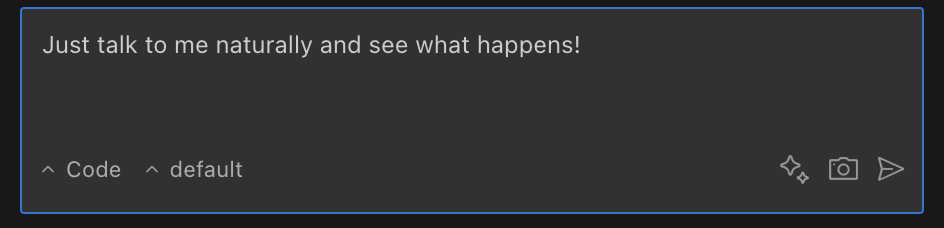
Good requests:
create a new file named utils.py and add a function called add that takes two numbers as arguments and returns their sumin the file @src/components/Button.tsx, change the color of the button to bluefind all instances of the variable oldValue in @/src/App.js and replace them with newValue
What makes requests work:
- Be specific - "Fix the bug in
calculateTotalthat returns incorrect results" beats "Fix the code" - Use @ mentions - Reference files and code directly with
@filename - One task at a time - Break complex work into manageable steps
- Include examples - Show the style or format you want
Use chat when you need to describe what you want, ask questions, or make changes across multiple files.
Use autocomplete when you're already typing code and want the AI to finish your thought inline.
The Chat Interface
Essential controls:
- Input prompt - Type your requests and press Enter to send
- Action buttons - Approve or reject proposed changes, answer questions
- Agent dropdown - Switch between agents (e.g. Code, Ask, Plan) from the sidebar
- Session management - Start new sessions or search and resume previous ones
Providing context:
The extension automatically passes context from your editor, including your open tabs and active file. You can type @ in the chat input to get file and terminal autocomplete suggestions. Use @filename to attach a file. In the sidebar, @terminal includes the active VS Code terminal output. In Agent Manager, it includes the focused terminal for the selected session or worktree, including embedded Run and Setup tabs. You can also mention file paths naturally in your message (e.g., "update src/utils.ts to add a helper function"). The agent can also discover files on its own using its built-in tools.
Exporting local transcripts:
Run /export in chat, or open a local session's History context menu and choose Export session transcript. The save dialog lets you choose the Markdown (.md) destination.
Kilo builds the export from the complete local session history, not only the messages currently loaded in the chat view.
Renaming sessions:
Double-click the current session title at the top of the chat to edit it inline. Press Enter or click outside the field to save, or press Escape to cancel.
You can also rename local sessions from History using the edit button or the session's context menu.
Switching session tabs:
When more than one session is open, the sidebar and Kilo editor tabs show a session tab strip. Use these shortcuts while the chat has focus:
| Shortcut (macOS) | Shortcut (Windows/Linux) | Action |
|---|---|---|
Cmd+Alt+Left / Right | Ctrl+Alt+Left / Right | Previous / next session tab |
Cmd+Shift+Left / Right | Ctrl+Shift+Left / Right | Move the focused session tab left / right |
Hover a session tab next to the active tab to see its shortcut. When the prompt is empty, its placeholder also shows the shortcut. To hide these prompt hints, turn off Show shortcut hints in Settings > Display. To change the keys, search for Previous Session Tab or Next Session Tab in Keyboard Shortcuts. These are the same keys that switch tabs in the Agent Manager, and each window acts on the surface that has focus.
Quick Interactions
Click to act:
- File paths → Opens the file
- URLs → Opens in browser
- Messages → Expand/collapse details
- Code blocks → Copy button appears
- Mermaid code blocks → Fenced
mermaidblocks render as diagrams after the message finishes streaming. The source remains copyable, invalid Mermaid syntax stays visible in a contained error state, and the Zoom action opens a fullscreen viewer with zoom and pan controls. - Charts → In VS Code, asking for a chart, graph, or plot renders an inline chart in the conversation. Supported types include bar, line, scatter, pie, doughnut, radar, bubble, and polar area. Diagrams and flowcharts still render as Mermaid.
Status signals:
- Spinning → Kilo is working
- Red → Error occurred
- Green → Success
Common Mistakes to Avoid
| Instead of this... | Try this |
|---|---|
| "Fix the code" | "Fix the bug in calculateTotal that returns incorrect results" |
| Assuming Kilo knows context | Use @ to reference specific files |
| Multiple unrelated tasks | Submit one focused request at a time |
| Technical jargon overload | Clear, straightforward language works best |
| Using chat for tiny code changes. | Use autocomplete for inline completions |
Why it matters: Kilo Code works best when you communicate like you're talking to a smart teammate who needs clear direction.
Suggested Responses
When Kilo Code needs more information to complete a task, it asks a follow-up question and often provides suggested answers to make responding faster.
How it works:
- Question Appears - Kilo Code asks a question using the
questiontool - Options Displayed - Selectable options are presented that you can choose from
- Selection - Pick an option or type a custom response
Benefits:
- Speed - Quickly respond without typing full answers
- Clarity - Suggestions often clarify the type of information Kilo Code needs
- Flexibility - Edit suggestions to provide precise, customized answers when needed
This feature streamlines the interaction when Kilo Code requires clarification, allowing you to guide the task effectively with minimal effort.
Tips for Better Workflow
Switch agents for different tasks. Use the agent dropdown, /agents slash command, or Cmd+. (Ctrl+. on Windows/Linux) to switch between agents like Code, Ask, and Plan. Each agent is tuned for a different type of task — see Using Agents for details.
Your editor context is automatic. The extension reads your open tabs and active file, so you don't need to manually reference every file. Focus your message on what you want done.
Pop out to an editor tab. If the sidebar feels cramped, pop the chat into a full editor tab for more room.
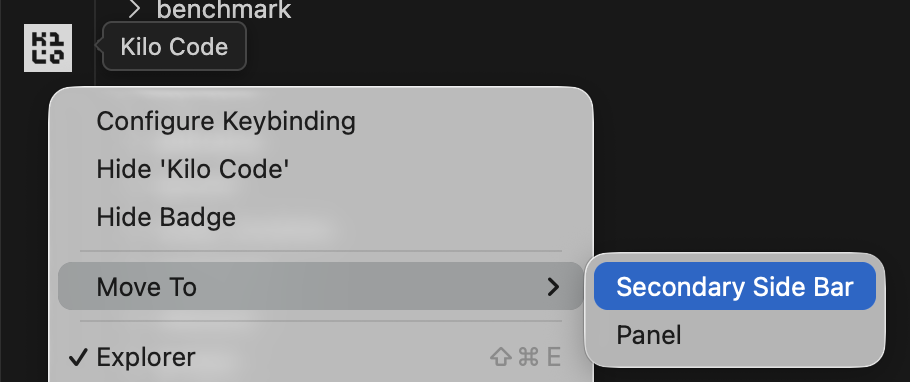
Move Kilo Code to the Secondary Side Bar for a better layout. Right-click on the Kilo Code icon in the Activity Bar and select Move To → Secondary Side Bar. This lets you see the Explorer, Search, Source Control, etc. alongside Kilo Code.
Ready to start coding? Start a session in Kilo Code and describe what you want to build!