Generate Commit Messages
Generate descriptive commit messages automatically based on your staged git changes. Kilo Code analyzes your staged files and creates conventional commit messages that follow best practices.
This feature only analyzes staged changes. Make sure to stage your files using git add or via VS Code interface before generating commit messages.
How It Works
The git commit message generator:
- Analyzes only your staged changes (not unstaged or untracked files)
- Uses AI to understand the context and purpose of your changes
- Creates descriptive commit messages that explain what was changed and why following the Conventional Commits (by default, customizable)
Using the Feature
Generating a Commit Message
- Stage your changes using
git addor the VS Code git interface - In the VS Code Source Control panel, look for the
Kilo Codelogo next to the commit message field) - Click the logo to generate a commit message
The generated message will appear in the commit message field, ready for you to review and modify if needed.
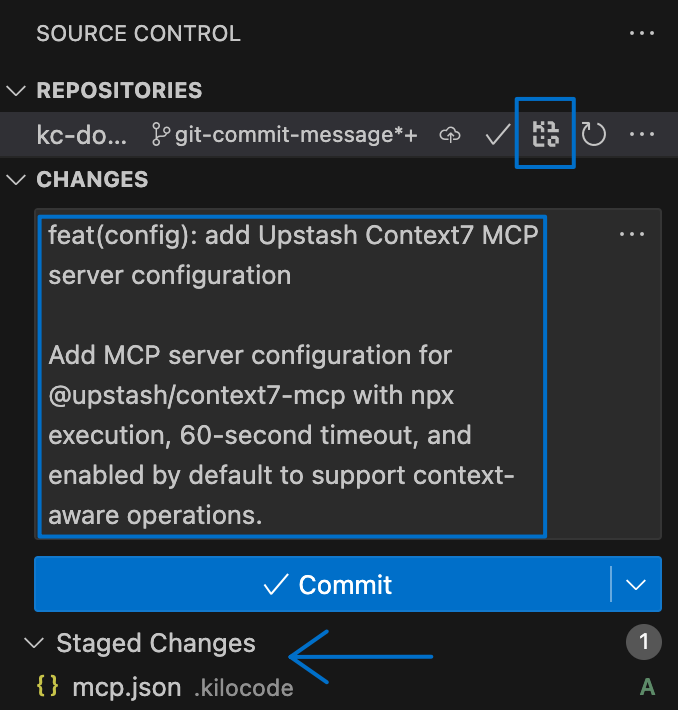
Conventional Commit Format
By default, generated messages follow the Conventional Commits specification:
<type>(<scope>): <description>

<body>
Common types include:
feat: New featuresfix: Bug fixesdocs: Documentation changesstyle: Code style changes (formatting, etc.)refactor: Code refactoringtest: Adding or updating testschore: Maintenance tasks
Configuration
The extension provides the same SCM button in the VS Code Source Control panel. Clicking it generates a commit message using the CLI backend's commit message generation API.
Configuration is handled through the extension's settings or the shared kilo.jsonc config file.
Customize the commit prompt from Settings > Commit Message. Kilo saves this prompt to the current project's config so each repository can follow its own commit conventions without changing your global settings.
You can also set it directly in the project config:
{
  "commit_message": {
    "prompt": "Write concise conventional commits with the package scope when possible."
  }
}
Git commit message generation is a VS Code extension feature. It is not available in the CLI/TUI.
Best Practices
Staging Strategy
- Stage related changes together for more coherent commit messages
- Avoid staging unrelated changes in a single commit
- Use
git add -pfor partial file staging when needed
Message Review
- Always review generated messages before committing
- Edit messages to add context the AI might have missed
- Ensure the message accurately describes the changes
Custom Templates
- Tailor the prompt template to your project's needs
- Include project-specific terminology or conventions
- Add instructions for handling specific types of changes
Example Generated Messages
Here are examples of messages the feature might generate:
feat(auth): add OAuth2 integration with Google

Implement Google OAuth2 authentication flow including:
- OAuth2 client configuration
- User profile retrieval
- Token refresh mechanism
fix(api): resolve race condition in user data fetching

Add proper error handling and retry logic to prevent
concurrent requests from causing data inconsistency
docs(readme): update installation instructions

Add missing dependency requirements and clarify
setup steps for new contributors
Troubleshooting
No Staged Changes
If the button doesn't appear or generation fails, ensure you have staged changes:
git add <files>
# or stage all changes
git add .
Poor Message Quality
If generated messages aren't helpful:
- Review your staging strategy - don't stage unrelated changes together
- Customize the prompt template with more specific instructions
- Try a different AI model through API configuration
Integration Issues
The feature integrates with VS Code's built-in git functionality. If you encounter issues:
- Ensure your repository is properly initialized
- Check that VS Code can access your git repository
- Verify git is installed and accessible from VS Code
Related Features
- API Configuration Profiles - Use different models for commit generation
- Settings Management - Manage all your Kilo Code preferences