Task Todo List
The big picture: Never lose track of complex development tasks again. Task Todo Lists create interactive, persistent checklists that live right in your chat interface.
Why it matters: Complex workflows have lots of moving parts. Without structure, it's easy to miss steps, duplicate work, or forget what comes next.
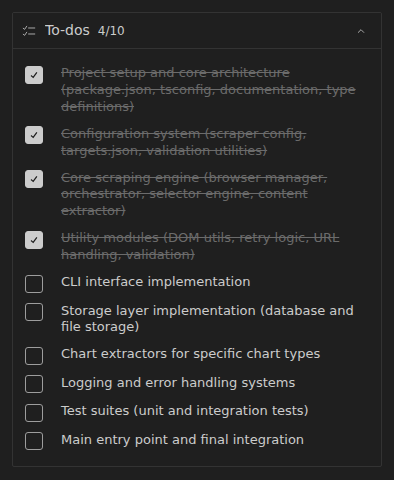
How to trigger todo lists
Automatic triggers:
- Complex tasks with multiple steps
- Working in Architect mode
- Multi-phase workflows with dependencies
Manual triggers:
- Ask Kilo to "use the
todowritetool" - Say "create a todo list"
The bottom line: Kilo decides what goes in the list, but you can provide feedback during approval dialogs.
How todo lists are updated
Todo lists are managed with the todowrite tool. Each update replaces the entire checklist with the latest view of the task.
Kilo updates the list when:
- New steps are discovered
- Items are completed or reprioritized
- You explicitly ask for a todo list
The old way vs. the new way
Before: You juggled task steps in your head or scattered notes, constantly wondering "what's next?"
Now: Kilo creates structured checklists that update automatically as work progresses. You see exactly where you are and what's coming up.
Where todo lists appear
1. Session Dock A progress chip above the prompt shows how many items are done and the item Kilo works on now
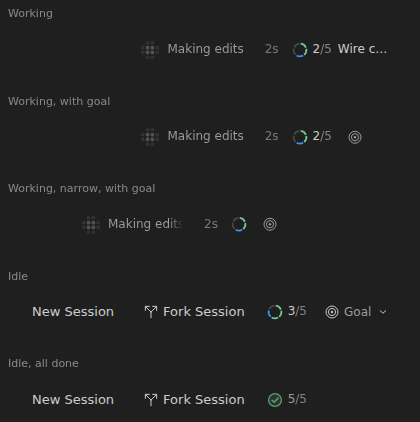
While Kilo works, the chip sits next to the working indicator. When the session is idle, it sits next to the session actions. Click the chip to see the full list.
2. Interactive Tool Block Full todo interface in chat where you can:
- See all items and their status
- Edit descriptions when Kilo asks for approval
- Stage changes using the "Edit" button
3. Environment Details Background "REMINDERS" table that keeps Kilo informed about current progress
Task status decoded
Pending -> Empty checkbox (not started)

In Progress -> Yellow dot (currently working)

Completed -> Green checkmark (finished)

Editing todo lists
When Kilo proposes a todo list update, you can edit the list before approving. Use the "Edit" button in the tool block to update item text, add or remove steps, or adjust status. Once approved, Kilo continues with the updated list.
Common questions
"Can I create my own todo lists?" Yes, just ask Kilo to use the todowrite tool. Kilo stays in control of the content and workflow.
"What about simple tasks?" Kilo typically skips todo lists for simple tasks. The overhead isn't worth it.
"Why can't I directly edit the list?" Design choice. Kilo maintains authority over task management to ensure consistent progress tracking. You provide input, Kilo executes.
Settings
You can disable todo lists in Settings -> Advanced -> Enable todo list tool. When disabled, Kilo won't create or update todo lists, and the REMINDERS table won't appear in Environment Details.
What it does: Automatically approves todo list updates without confirmation prompts.
When to use it: Long workflows where constant interruptions slow you down.
How to enable it: Allow todowrite in the auto-approval settings.
The catch: Less control, but faster execution.